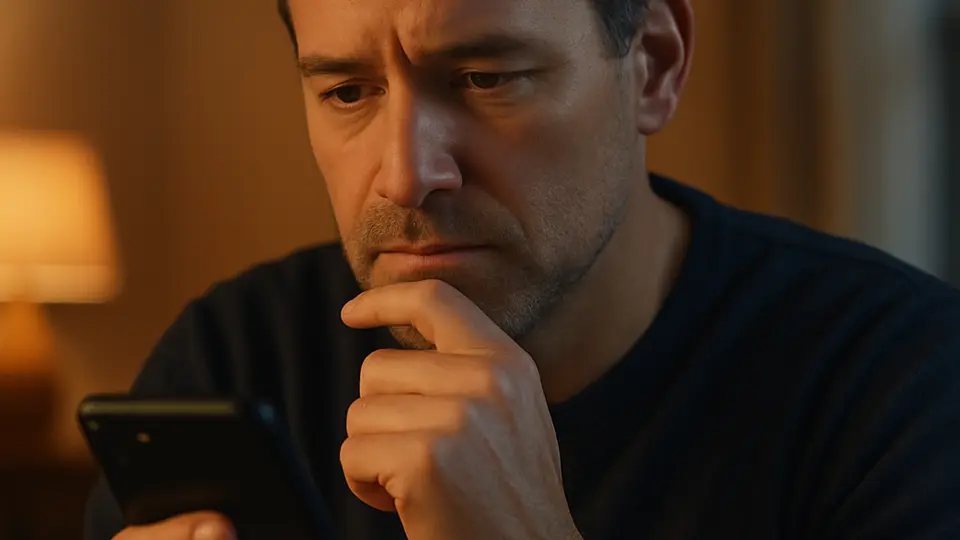
AI-powered tools can try billions of password combinations per second, and they feed on stolen lists from old data breaches. But the real danger is simpler: reusing the same password on multiple sites means one leaked password can unlock dozens of accounts. The fix is a password manager, two-factor authentication, and a free breach check — all of which you can set up in an afternoon without any technical know-how.
In an AARP survey of U.S. adults 50 and older, worry about AI being used to crack passwords ranked first at 87% — ahead of deepfakes (85%) and voice cloning (84%). (Source: AARP Public Policy Institute.) That concern is well founded. AI tools can now test enormous lists of stolen passwords across hundreds of websites automatically, faster than any human could manage.
The reassuring part: you do not need to be technical to protect yourself. The four steps below work whether you have an iPhone, an Android phone, a Windows PC, or a Mac — and the most important first step takes about five minutes.
What "AI Password Guessing" Actually Means
When you hear that AI can "crack" passwords, here is what is actually happening. Criminals obtain lists of usernames and passwords from old data breaches — leaks from large websites that happened years ago. Those lists are sold online. Software, increasingly powered by AI, then tries those username-and-password combinations on hundreds of other websites automatically. This is called credential stuffing.
The AI part makes it faster and smarter. Instead of trying random combinations, the software focuses on combinations that are statistically likely to work: common words, names, birth years, simple patterns. It learns which guesses succeed.
The target is rarely your strongest password. It is your weakest one — on a site you forgot about — that you also reused somewhere that matters.
The Real Danger: Reused Passwords
If you use the same password on more than one site, a breach on any one of them can unlock the others. This is the single biggest password vulnerability most people have. A password that looks strong but is used on five sites is less safe than a simpler password used only once.
Think of it this way: every site holding your email and password has a copy of your key. If one site drops its key and criminals pick it up, they try it on your bank, your email, your government accounts, your health records.
The solution is not harder-to-remember passwords. It is making sure no two sites share a password — and the next step shows you the easiest way to do that.
Step 1: Use a Password Manager
A password manager does one job: it stores a different, randomly generated password for every site you use. You only need to remember one master password to open the manager. Every other password is long, random, and unique — the kind that no person and no AI can guess.
Your phone almost certainly has one built in. On an iPhone, go to Settings, then Passwords. On an Android phone, go to Settings, then Google, then Autofill. Both are free and work automatically once you turn them on. When you visit a site, the password manager fills in your login for you.
You do not need a paid app to get started. The built-in managers on iPhones and Android phones are excellent for most people. Start there.
One rule: your master password — the one that opens the manager — should be a passphrase. That means four or five ordinary words strung together, like "purple kitchen blanket sunset." Easy to remember, very hard for software to guess. This lines up with current U.S. government guidance: NIST's federal password standard (Special Publication 800-63B) favors length over complexity and no longer recommends forced special characters or scheduled password changes — a long passphrase you actually remember beats a short, "complex" password you have to write down.
Step 2: Try Passkeys — Sign In With Your Face or Fingerprint
A passkey is a newer, simpler way to log in. Instead of a password, you use your fingerprint, your face, or your phone's PIN. The website never receives a password at all, so there is nothing for criminals to steal in a breach.
More and more major services — Google, Apple, Microsoft, Amazon, PayPal — now offer passkeys. When a site asks whether you want to "save a passkey" or "sign in with a passkey," say yes. It is safer than any password you could type.
You are probably already using a version of this on your phone when you unlock it with your face or fingerprint. Passkeys bring that same simplicity to websites and apps.
Step 3: Turn On Two-Factor Authentication
Two-factor authentication (often called 2FA) means that even if someone gets your password, they still cannot log in without a second check — usually a code sent to your phone.
There are two types of 2FA, and they are not equally safe:
SMS codes — the site sends a six-digit code by text message. This is better than nothing, but phone numbers can be taken over by scammers in some circumstances, making it the weaker option.
An authenticator app — free apps like Google Authenticator or Microsoft Authenticator generate a fresh code every 30 seconds on your phone. Even if a scammer has your password, they cannot get that code without physically holding your phone. This is much more secure.
Start with SMS if it is the only option offered — it is still a meaningful improvement over no 2FA at all. But for your most important accounts (email, banking, social media), switch to an authenticator app when you can.
Step 4: Check If Your Email Was in a Breach
A website called Have I Been Pwned (haveibeenpwned.com) lets you type in your email address and see which data breaches have exposed it. It was built by a security researcher and is free to use. The site does not ask for your password — only your email address.
Go there, type your email, and press the check button. The site will show you a list of any breaches where your email address appeared. If your email shows up in a breach, your password for that site is known to criminals. Change that password right away — and change it on any other site where you used the same password.
What to Watch Out For
Fake "your account was hacked" emails. Criminals send emails that look like official security alerts: "We detected unusual activity. Click here to secure your account." These are phishing attempts. Do not click the link. Instead, go directly to the site by typing its address in your browser, or call the company using a phone number from its official website.
Password-reset phishing. A scammer triggers a real password-reset email from a service you use, then calls you pretending to be from the company's security team. They ask you to read them the code that just arrived on your phone. Never read a security code to someone who called you. Real company employees never ask for this.
Pop-up fakes that imitate your password manager. Your real password manager fills in your login credentials automatically — it never asks you to retype your master password on a webpage. If a site is asking for your master password, close that tab.
What to Try Next
Phishing emails are often the first move criminals make before attempting an account takeover. How to spot AI phishing emails gives you six quick checks that reveal fake messages — even the ones that look completely legitimate. If you're also wondering what personal details you should never share with an AI chatbot, What not to tell an AI chatbot covers the specific information that could put you at risk.
Sources
- Older Adults Express High Concern and Limited Knowledge About AI Scams and Fraud — AARP Public Policy Institute
- Have I Been Pwned — Troy Hunt
- Digital Identity Guidelines: Authentication and Authenticator Management (SP 800-63B-4) — NIST
- FIDO Passkeys: Passwordless Authentication — FIDO Alliance
- Criminals Increasing SIM Swap Schemes to Steal Millions of Dollars from US Public — FBI Internet Crime Complaint Center (IC3)