Google AI Mode is a separate, chat-style AI search that you open on purpose (the AI Mode button or google.com/ai) and can ask follow-up questions in. AI Overviews is the AI summary box Google adds by itself above normal results. Both are free, both can be wrong, and only AI Overviews appears without you asking.
Google AI Mode is a separate, chat-style search that you open yourself: you press AI Mode on Google or go to google.com/ai, ask a question in your own words, and keep asking follow-ups. AI Overviews is something else: the AI summary box that Google puts above the normal results of some searches without being asked. Both are free and both can be wrong. Here is how to tell them apart, what each one is good for, and what to check before you rely on an answer. We checked every detail on Google's own pages on 16 November 2026.
AI Mode vs AI Overviews at a glance
| AI Overviews | AI Mode | |
|---|---|---|
| Where you see it | In normal Google results, above the links, for some searches | On its own page, instead of the list of links |
| How it starts | By itself, when Google decides AI can help | Only when you open it: the AI Mode button, google.com/ai, or the Google app |
| Follow-up questions | Only by moving into AI Mode (Show more on a phone) | Yes, it remembers the conversation |
| What you can ask with | A typed search, an image search or Circle to Search | Typing, your voice, a photo, a PDF or a web address |
| Can you turn it off? | No; the Web filter hides it for one search | You simply don't open it |
| Cost | Free | Free; paid Google AI plans add extras |
| In Czech? | Yes | Yes |
What AI Mode does
When you ask AI Mode a question, Google splits it into smaller questions, searches for each of them at the same time and writes one answer from what it finds, with links to the pages it used. Google calls this "query fan-out". It's why AI Mode handles long, specific questions better than a normal search, such as "a quiet hotel near the sea in Croatia for two adults in May, no long walks".
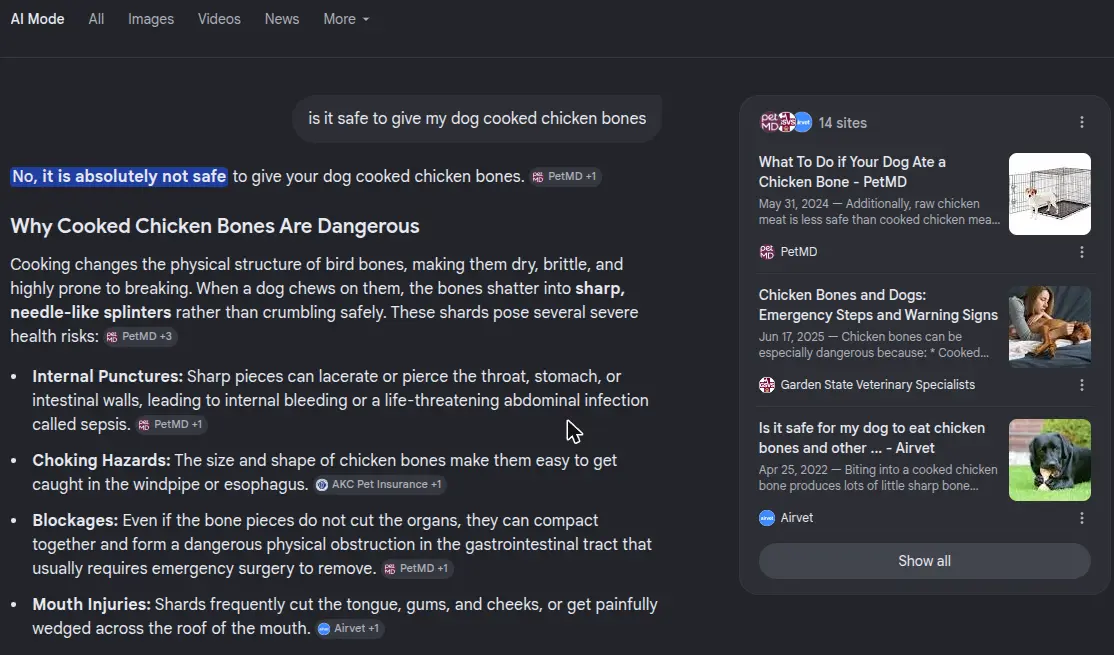
Google AI Mode with its source list on the right — our own screenshot, 31 July 2026. The layout may look slightly different now.
You can keep the conversation going: "What about in June?" is understood as a follow-up. Since 12 November 2026, AI Mode runs on Google's new Gemini 4 Hydrogen model for everyone, which Google calls the biggest upgrade of its search model so far.
How to open AI Mode
- On a computer: go to google.com, type your question and click AI Mode, or go straight to google.com/ai.
- On a phone: in the Google app, tap AI Mode on the home screen.
- From an AI Overview on a phone: tap Show more at the bottom of the AI box and type a follow-up question. Your search carries over into AI Mode. Tap Close to go back.
- To speak instead of typing, use the microphone icon in the question bar; you can also add a photo or a PDF to your question. In the Google app, Live lets you talk to Search out loud and show it things through your camera.
Can you turn it off?
- AI Overviews: no. Google's help page says they are a core feature of Search and "cannot be turned off". After a search, choose the Web filter (on a computer it may be under More) to see only plain links. Our guide on getting rid of Google's AI answer shows how to make Chrome open that view every time.
- AI Mode: there is nothing to switch off. It only runs when you open it. Google's help pages describe no way for it to open on its own.
Is AI Mode free, and what do paid plans add?
The ordinary AI Mode costs nothing. Google sells three paid AI plans on top: Google AI Plus, AI Pro and AI Ultra. Prices depend on your country and are listed on Google's AI plans page. In search, the plans mainly add:
- Gemini 4 Carbon, Google's most capable search model, only for AI Ultra subscribers aged 18 and over, with a daily limit;
- Deep Search, which researches a question for longer, only for AI Pro and Ultra in the US.
You don't need either for everyday questions. If you want fewer subscriptions rather than more, see our guide on cancelling an AI subscription.
What happens to your questions
- Signed in with Search history on: your AI Mode conversations are kept in AI Mode history, so you can pick one up later. Delete one or all of them there, or on your Search history page. Deleted items can still show in My Activity for up to a day.
- Started in an AI Overview, continued in AI Mode: this can leave two entries, your original search and the AI Mode follow-up. Delete both.
- Personalised answers: if you're 18 or over and have Search history and personalised recommendations turned on, AI Mode can use your past searches to tailor answers, and where Google offers it, you can choose to connect Gmail, Google Calendar and Google Photos. Connecting them is optional and you can disconnect them at any time. Our guide on stopping AI from reading your email lists the Gmail switches.
Ads in AI answers
Ads can now appear inside AI Overviews and AI Mode. Google says they are always labelled Sponsored and that paying does not change its AI answers. When we checked, they were shown in English in the US and selected English-speaking markets, and on 28 October 2026 Google added ten more countries, including Australia, Canada and India. Treat a "Sponsored" product in an AI answer the way you would treat any advert.
What to trust and what to double-check
Google's own help page says plainly that AI Overviews "can and will make mistakes", and that AI Mode "doesn't always get it right". They are most useful where a mistake is cheap and easy to spot:
- general explanations, such as "how does a deductible work?";
- step-by-step help with cooking, simple home repairs or phone settings;
- comparing options you will then check yourself, such as two models of a vacuum cleaner.
Be careful with:
- prices, opening hours and phone numbers, which go out of date or get mixed up;
- health, money and legal questions: confirm with an official source or a professional;
- news from the last few days, which may be missing or mixed with older stories;
- exact numbers: statistics, dosages, deadlines.
How to check an answer and report a wrong one
- Click the source link next to the sentence that matters and read the page yourself.
- Compare with the normal results below the AI box, or with the Web filter.
- For health, money or legal matters, go straight to an official site, such as your government, your bank or your doctor's practice.
- If an answer is wrong, press the thumbs down under it and choose what's wrong. Google says the feedback includes your search and its results, so don't type anything private into the comment.
What to try next
If you'd like to compare Google with other AI search tools, AI Search vs Google puts the main options side by side, and How to Use Perplexity AI walks you through a search tool built around AI answers with sources. For a broader view of when AI answers deserve trust, read can you trust ChatGPT?, which applies to Google's AI too.
Sources
- Get AI-powered responses with AI Mode in Google Search — Google Search Help
- Find information in faster & easier ways with AI Overviews in Google Search — Google Search Help
- About ads in AI-powered experiences in Google Search — Google Ads Help
- Google Search upgrade: Gemini 4 Hydrogen features — Google, 12 November 2026
- Ads in AI Mode expand to new markets — Google, 28 October 2026
- Google AI plans — Google One